
Wiring up connectors
You met Cowork in the last course as the version of Claude with access to your work. Connectors are how it gets that access.
What a connector is
A connector is a permission slip. It tells Cowork “you can read my Gmail” or “you can search my Notion.” Once it is on, every task you run in Cowork can use it. You do not have to mention the connector in your prompt; Cowork picks the right ones for the task.
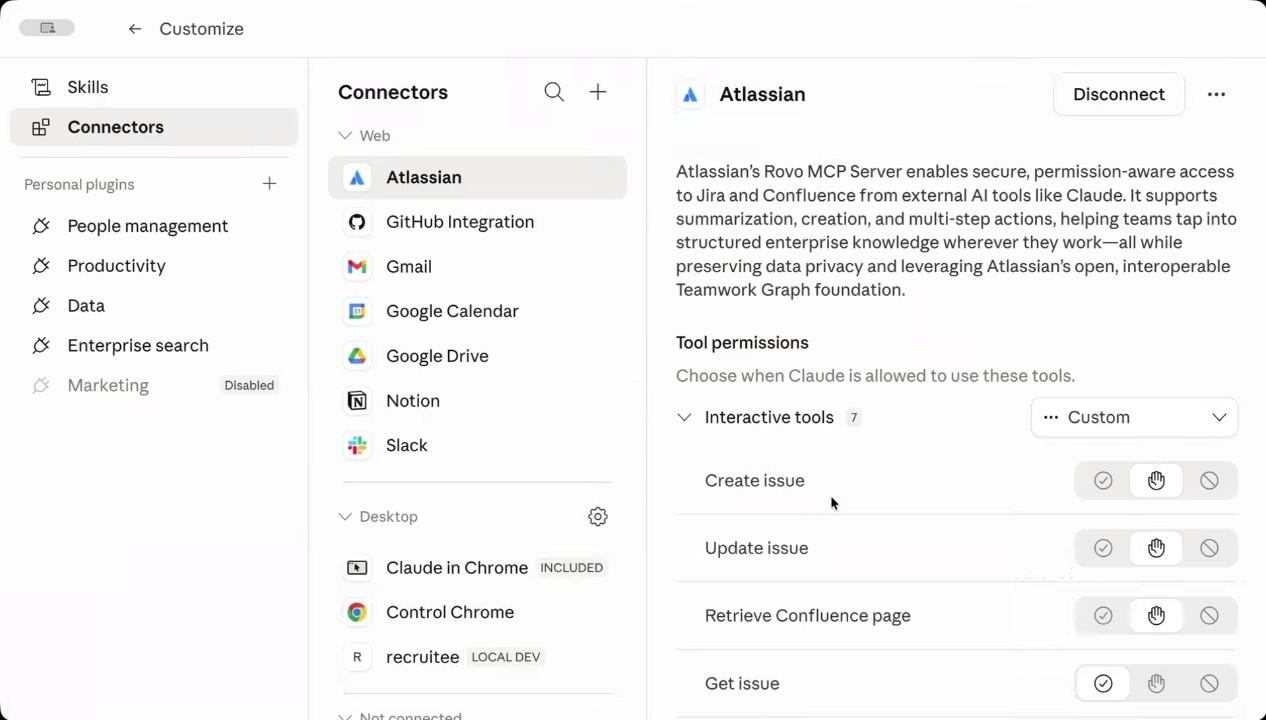
The list worth turning on:
- Atlassian (Jira + Confluence). Tickets, sprints, specs, runbooks.
- Gmail or your work email. Read-only is plenty for most use cases.
- Google Calendar or your work calendar. Meetings, attendees, descriptions.
- Google Drive or your work file store. Docs, decks, sheets.
- Notion if your team uses it. Specs, plans, meeting notes.
- Slack if your team uses it. The single richest source of context most companies have, and the one most underused for AI.
You connect them once. After that they are just there.
Setting permissions: read freely, write carefully
Each connector lets you set permissions per tool. Three options: always allow, ask each time, or never. A small habit makes a big difference here:
- For read-only tools, allow always. Reading email, fetching Confluence pages, listing calendar events, pulling Slack threads. You want Cowork doing these many times a day without interrupting you, and the cost of a wrong read is roughly zero.
- For write or destructive tools, approve one by one. Creating a Jira issue, sending an email, updating a record, deleting anything. These have consequences other people will see. Keep them on “ask each time” so the wrong one never goes out.
The reads happen quietly in the background; the writes always come up for your approval. That is the setup that lets you set Cowork loose on real work without worrying about what you will have to clean up.
The magic is in the combination
No single connector is a game-changer. Two or three together is. This is the thing that surprises people the first time. Slack alone is fine. Calendar alone is fine. Slack plus calendar plus email together is “Claude knows what is going on this week.”
Some examples of combinations that pay off immediately:
- Calendar + email + Slack. “What do I need to know before my 11am with the design team?” Cowork reads the invite, scans the email thread the meeting was scheduled from, looks at the design channel for the last week of context, and gives you one brief.
- Notion + Drive. “Pull the latest version of the Q3 plan and tell me what changed since the version I read on Monday.” Works whether the doc is in Notion or Drive.
- Slack + Jira. “Anyone block on the migration ticket this week?” Pulls the channel discussion, cross-references the ticket activity, gives you the short version.
- Gmail + Drive. “Summarise the customer call email thread and pull in the deck they sent.” One answer, both sources.
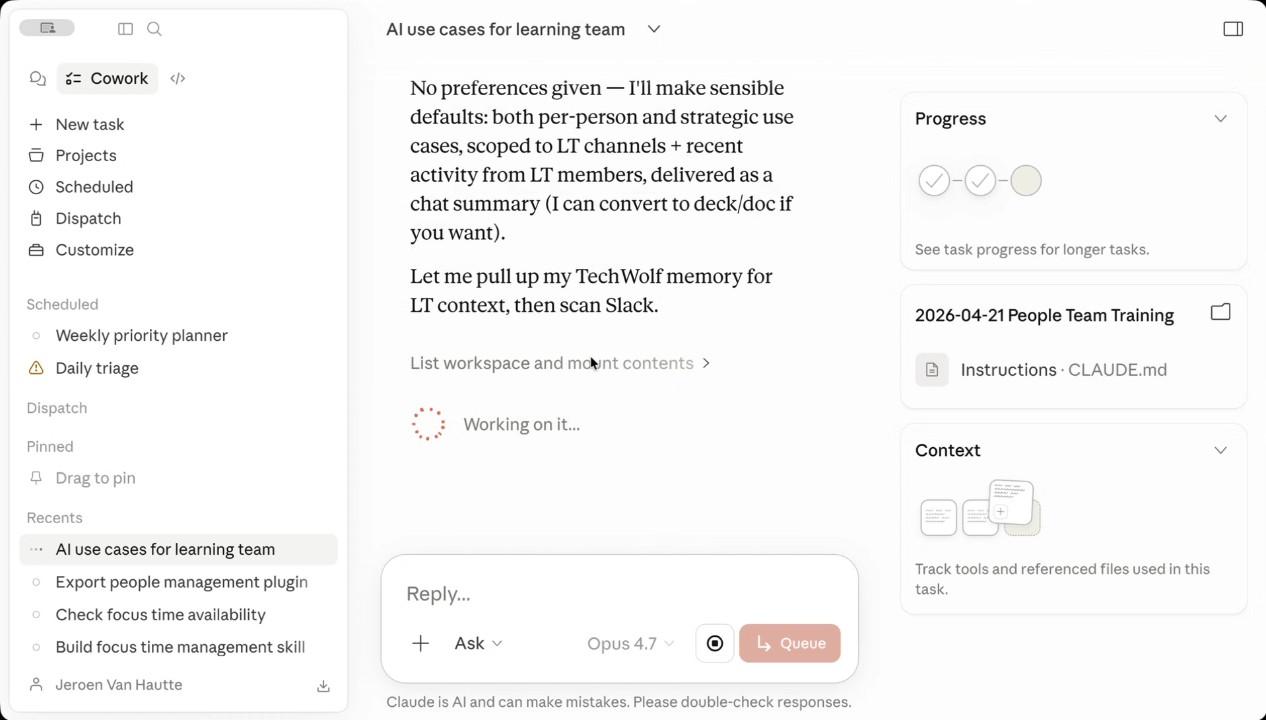
Each combination is a piece of work that used to take you fifteen minutes of tab-switching and now takes Cowork forty seconds. The reason this matters for productivity is not the forty seconds. It is that you actually do the briefing now, instead of skipping it.
Cowork has the same access you do
The connectors give Cowork the same permission level you have, no more and no less. This is the most important sentence in this course. Read it twice.
Cowork can read your private Slack channels. It can read your DMs. It can read your inbox. It can read draft docs that have not been shared. Same as you. That is what makes it useful, and it is also why you have to be the responsible one when an output goes anywhere beyond your own screen.
Two practical rules:
- Anything Cowork tells you that came from a private source is yours to summarise responsibly. If you forward Cowork’s output to a wider audience, you are publishing whatever it pulled in. Read first, send second.
- Customer information stays inside your team. If a connector touches customer data (Slack channels with customer names, email threads from a customer), the output does too. Treat it the same way you would treat raw notes you took from that customer call.
Neither of these is a Cowork-specific rule. They are the rules that already apply to anything you read at work. The point is that Cowork will not enforce them for you.
The Control Chrome connector: don’t
Cowork can also be given control of your Chrome browser. The honest recommendation is “don’t, unless you have a specific reason.”
Two problems with it. First, the failure modes are big: a browser-controlling agent can click things, fill forms, and submit them, and the cost of an accidental click is much higher than the cost of a misread email. Second, the upside is small for personal productivity: most of what you would use it for is already covered by the connectors above. Slack reads better through the Slack connector than through Chrome. Gmail reads better through Gmail.
If you do enable Control Chrome for some specific task, do not turn off the permission prompts. Letting it ask before each action is the only safety net it has. And keep the connection only to “tech sources” you trust. Never let it touch banking, customer-facing systems, or anything that produces consequences when a button gets clicked.
Hands-on
Open Cowork → Customize → Connectors. Pick three sources you actually use every day. For most readers that will be calendar, Slack, and email. Connect them now. The OAuth flow takes about one minute per source.
Run one combination prompt. New Cowork task. Try: “Summarise what’s been happening on [a project name] this week, pulling from Slack, email, and the calendar.” Watch what it returns.
Notice what surprised you. Where did Cowork pull from that you did not expect? Where did it miss something? Both are useful for the next course.
Reflect
- Which connector do you expect to add the most value, and which one are you most uneasy about? The uneasy one is often the most valuable.
- A week from now, which of your current Chat habits will you have moved into Cowork because the connectors made the answer better?
View as plain markdown for LLMs and copy-paste