
Talking to your AI
Once you internalise that, a lot of friction goes away. You stop writing terse prompts because typing is annoying, and you start dumping the full picture in thirty seconds: what you tried, what broke, what you actually want, in plain spoken language. The output gets dramatically better, because the input did.
There are three flavours of “talking to your AI”, and they are not equally useful. Dictation across every app is the move that actually compounds. The in-app microphone and live conversation each have niches, but neither replaces a proper dictation setup.
Voice as input: dictation
Dictation gets your spoken words into any text field, on the spot. Hold a key, talk, and the words show up wherever your cursor is. Slack, email, the terminal, a Claude Code prompt, a doc. The agent on the other end receives text, the same way as if you typed it, just much faster and with more context in it.
The tool we recommend on macOS is VoiceInk. It sits in your menu bar, transcribes locally with Whisper (so your voice never leaves your laptop), and types into whatever field has focus. Hold a key, speak, release, done.
Crucially, VoiceInk can pipe the transcription through an LLM before the text lands. Turn this on. It strips filler and stop words, fixes punctuation, and gives the text actual structure. Your spoken context dump becomes something both you and the agent on the other end can read cleanly, which is the whole point.
The free, open-source alternative is Handy. Same core idea, no price tag, cross-platform. More bare-bones than VoiceInk: no LLM enhancement, fewer options, less polish. If you do not want to pay for VoiceInk or you are not on a Mac, start there and accept the trade-off.
There are paid subscription alternatives worth knowing about: Superwhisper and Wispr Flow. Both are polished, multi-platform, and ship a smooth experience. We think the open-source options are just as strong on desktop, so the main reason to reach for a subscription is when you want the same dictation tool to follow you to mobile.
A small VoiceInk feature that pays back fast: the personal dictionary. Map “my LinkedIn” to your full URL, fix the spelling of your company’s products, teach it the names of your colleagues. You will use it more than you expect.
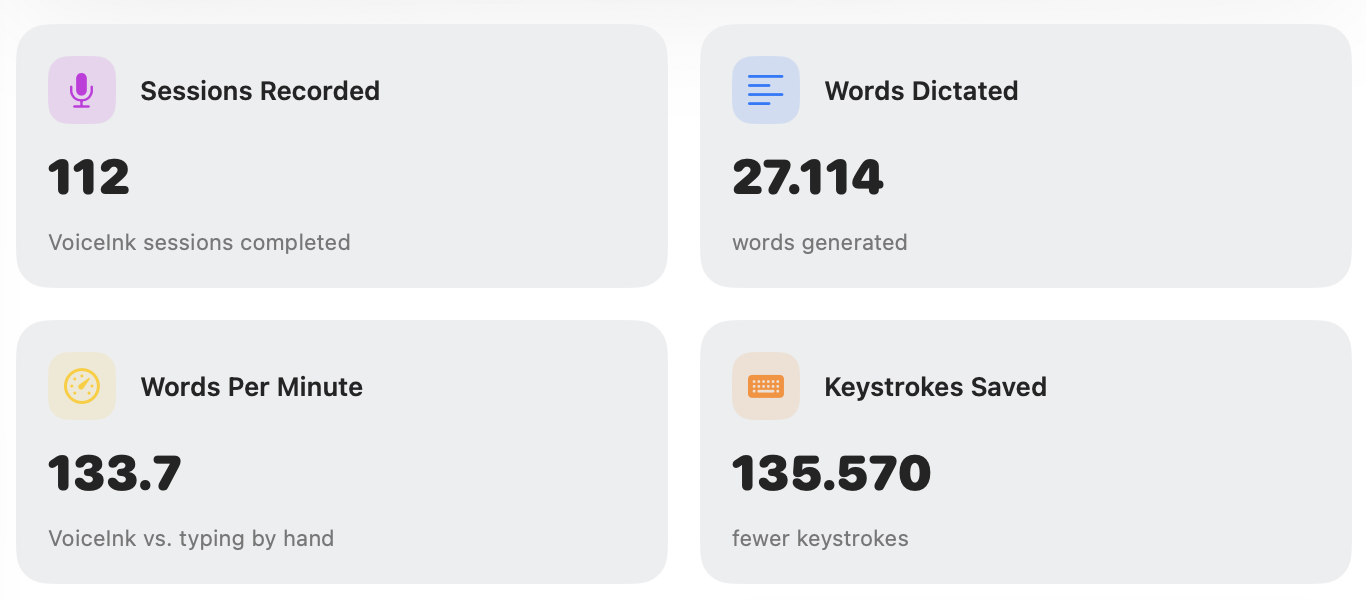
Why a separate dictation tool, instead of the microphone in your AI app? Because a tool that works in every app, the same way every time, helps you get into a real habit. You start adding context everywhere by default: Slack, email, doc comments, prompts, terminal commands. The in-app microphones lock voice to one tool, and their built-in transcription is usually noticeably worse than what VoiceInk or Handy ship. Pick a system-wide tool, learn one shortcut, use it everywhere.
One thing nobody warns you about: the first time you dictate at your desk in earshot of colleagues, it feels cringey. The second time, less so. By the third or fourth, you forget about it. The payoff in better prompts and richer context starts the moment you stop self-censoring, and within a year everyone in tech will be doing this anyway. Push through the first day and the habit sticks.
If you live in Claude Code, it ships with its own /voice mode that lets you dictate prompts straight into the terminal without a separate app. Worth knowing about, but not a substitute for the system-wide tool.
You hold a key and dump 90 seconds of context: what you tried, what failed, what you want next. Claude has the full picture and you have not touched the keyboard.
You type a six-word prompt because typing is tiring. Claude guesses at the missing context, gets it wrong, and now you are typing follow-ups.
Voice in the AI tools you already use
Most chat agents have a microphone button right next to the send button. Claude on web and desktop, Gemini on web and mobile, ChatGPT in every input. Tap the mic, speak, the words land in the prompt as text.
Treat this as a fallback, not the main move. The transcription is usually weaker than what a dedicated dictation tool produces, and voice locked to one tool means you keep typing terse prompts everywhere else. The genuine case for it is mobile, where reaching for VoiceInk does not apply; the AI on your phone course goes deeper on the moves that only happen on the phone.
Live conversation mode
Live mode is a real-time spoken conversation with the model: you talk, it talks back, you interrupt, it stops. Claude, ChatGPT, and Gemini all ship one.
For most work, you are better off dictating into a typed chat than using live mode. The text models behind typed conversations are noticeably smarter than the conversational models behind live voice, which are tuned for natural-sounding back-and-forth at the cost of long structured reasoning, code, and careful analysis. If you want a real answer, dictate the question and read the typed reply.
Where live mode genuinely earns its place is when you want the model to interview you. A walk where you think a decision through out loud and the agent pushes back on your reasoning, asks the question you were avoiding, or makes you defend the position you were drifting toward. That is a useful tool. Drafting, analysing, and any work you would normally read carefully are not.
Bottom line: dictation everywhere is the upgrade that actually compounds. The in-app mic is a fallback when you have not installed a system-wide tool yet, or when you are on the phone. Live mode is for the rare cases where you want the model to interview you. Dictation first, the rest as exceptions.
1 quick scenario question. Pick the best fit, see why.
Hands-on
Open Slack, an email draft, or any text field. Hold the shortcut and dictate a real message you would normally type. Speak naturally, do not try to perform. Release. Read what landed. Send it (or do not).
Open Claude or Gemini in your browser. Find the microphone button in the input box. Tap it and dictate a prompt for something you actually need: a draft, a summary, a piece of code. Compare how that felt versus typing.
Open the Claude or ChatGPT mobile app and start a live voice conversation. Ask it to help you think through a real decision you are making this week. Notice how the answers feel different from the typed model: faster, shorter, more conversational, less structured. Decide for yourself when this mode is the right tool.
Reflect
- Which of the three modes (dictation, in-app mic, live conversation) is going to save you the most time this week, and what is the first task you are going to use it for?
- Voice makes it cheap to give long context. Is there a recurring prompt you keep typing tersely that would be five times better if you spent thirty seconds dictating the full picture?
Recommended reading
Want to know more about voice input?
View as plain markdown for LLMs and copy-paste